NewFreeze time on any click

Screen record on Windows.
It edits itself.

The free screen recorder for Windows 10 and 11. Record your screen with sound, and it zooms in where you click and type, smooths every move of your cursor and blurs what’s private, so your demos and tutorials come out finished.

Free · Windows 10 and 11 · No account

screenrecordwindows.comQ3 revenue walkthrough
‹Q3 revenue walkthroughSaved↶ ↷Export
ClipZoom3D
0:000:020:040:060:08
Q3 revenue walkthrough
Auto · 190%Typing · 150%
Turn aroundPush in to detailHero orbit
Zooms itselfYour clicks and typing set the camera.
4K at 60 fpsMP4 up to 4K, or a GIF for the docs.
Private by defaultNothing you record leaves your PC.
Built for WindowsWindows 10 and 11, native capture.
Automatic zoom

Every click in close‑up.

While you screen record, the app watches what you do. It eases in before a click lands, frames the field you type in, and pulls back when you’re done. Every zoom sits on the timeline, ready to move, trim or delete.

Zooms in before the click lands

Knows what you clicked.Windows tells it which button or field you used, so a zoom frames the control, not just the pointer.

Typing, handled.Bursts of typing get a gentle zoom of their own. Shortcuts and arrow keys never make the camera twitch.

Sharp up close.Clarity upscales and sharpens the picture, strongest where you’re zoomed in furthest.

Cursor & motion

A steady hand, every time.

The cursor is redrawn from your mouse movements, so a nervous path becomes a smooth glide and every click is easy to follow. Change its size, style and click effect after you record.

Your handWhat viewers see
Ripple
Double
Halo
Focus
Glass
Liquid
Squash
Size, shape, blurChange the cursor after you record.

Smooth cursor.Shaky movement becomes a steady glide without looking robotic.

Seven click styles.From a quiet ripple to liquid glass, or none at all.

Motion blur.Quick moves pick up a natural blur, the way a camera would film them.

Click focusNew

Make the click impossible to miss.

Mark any click on the timeline and the rest of the screen dims and softens while the button you pressed stays sharp. Time can freeze on the click for a moment while the camera keeps moving. Made for tutorials and demo videos.

Fits the button.When the app knows what you clicked, the spotlight wraps it neatly.

Freeze time.The video eases to a stop on the press and back up, with no slow‑motion stutter.

One style for all.Set darkness, blur, size and hold once, and every focused click follows.

3D devices Beta

Put it on a MacBook.
Or an iPhone.

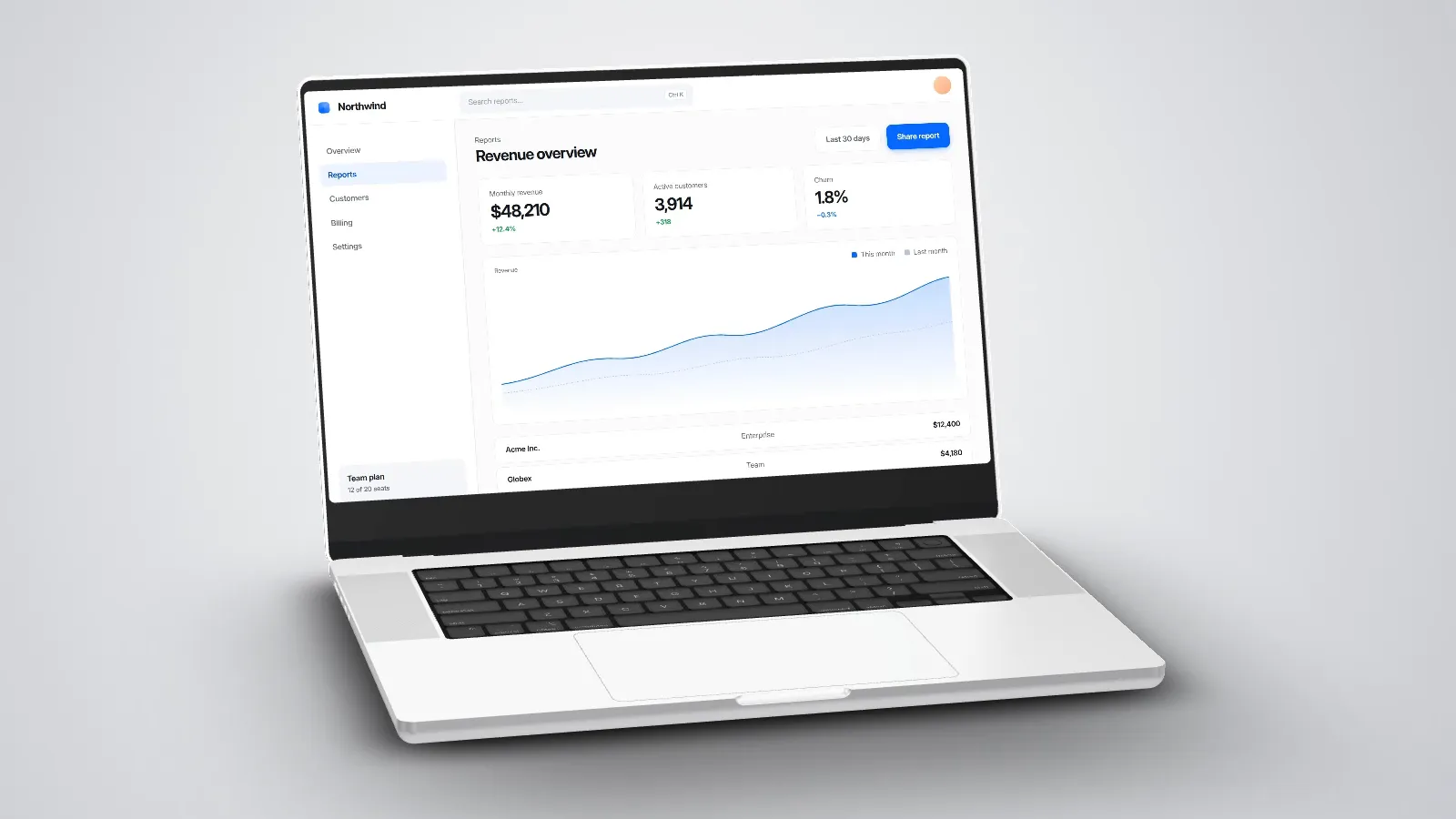
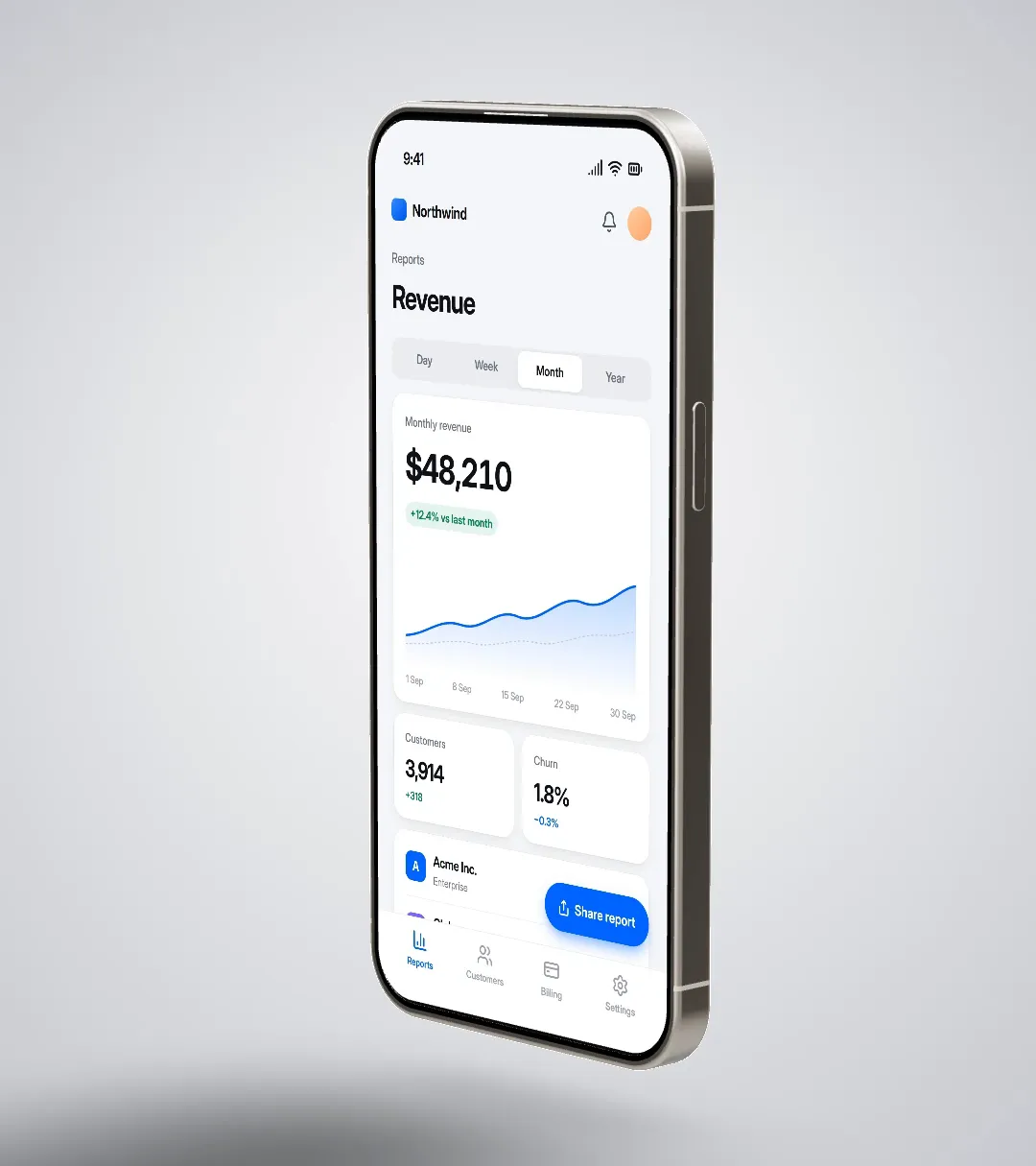
Place your recording on a 3D MacBook or iPhone in a lit studio. A film camera runs the whole video: it opens on the device, pushes in where your cursor is busy, drifts wide when it’s quiet and closes out. Change any shot on the timeline.

A Windows screen recording of an analytics dashboard playing on a 3D MacBook
MacBook
A vertical screen recording of the same dashboard on a 3D iPhone in natural titanium
iPhone

Follows your cursor.Close shots aim where the action is, wide shots take in the whole device.

Shots you can direct.Swap any shot or drag a cut in the timeline’s 3D lane.

Any format.From 16:9 to 9:16, the device stays framed. Tall recordings fill the iPhone’s screen.

Layouts & formats

One take. Every shape.

Switch between 16:9, 1:1, 4:5 and 9:16 whenever you like. Templates put your screen and camera where they belong for each shape: side by side for YouTube, stacked for Reels and TikTok, a bubble when the screen needs the room.

Stacked on 9:16: the whole screen on top, you below. Nothing gets cropped.

The whole screen, uncropped.On tall formats a 16:9 recording sits on padding and background, or fills the frame and follows the action.

Six templates.Screen, Full frame, Bubble, Side by side, Stacked and Camera, drawn at your canvas’s shape.

Everything re‑aims.Zooms, the cursor and the 3D camera follow along in every shape.

Privacy blur

Secrets blur themselves.

After every recording, text recognition on your PC looks for email addresses, API keys, card numbers and phone numbers, and blurs them in every frame they appear. Draw your own blur boxes for anything else.

4 private values found · blurred in every frame

Nothing leaves your PC.

The whole app works offline. There’s no account, no cloud upload and no usage analytics.

  • Recordings and projects stay in your user folder
  • Text recognition runs on Windows’ own engine
  • Exports are rendered on your graphics card
  • The recorder itself never appears in a recording
Recording

Record your screen in one shortcut.

Press Alt R from anywhere in Windows. A small bar appears at the bottom of the screen: record the whole screen, one window or an area, with your microphone, computer sound and camera.

northwind.app/reports/revenue
✕ScreenWindowArea1280 × 720Record

Clean browser takes.Recording Chrome, Edge or Brave? The tabs and address bar are left out for you.

See what’s recorded.The area you drag stays outlined while you record, and the outline never shows in the video.

Waits, sped up.Loading spinners and pauses are spotted afterwards, ready to play at 4× with one click.

And the rest

Small things, done properly.

Split, trim and speedCut anywhere and play any part from 0.5× to 4×.
Waits sped upSpinners and loading screens are found and offered at 4×.
Nine transitionsSlide, dissolve, wipes, zoom blur and more between clips.
BackgroundsWallpapers, gradients and colours, with padding, corners and shadow.
Camera stylingSize, roundness and mirroring for your webcam.
Motion blurFast moves of the cursor and camera blur like a real lens.
One shortcutStart a recording from anywhere with Alt + R.
CountdownThree seconds to get ready, then you are rolling.
Hardware encodingYour GPU does the heavy lifting while you record and export.
Saved as you goEvery edit is saved, and every edit can be undone.
Clean browser takesTabs and the address bar stay out of browser recordings.
Any areaA whole screen, one window or just the region you drag.
Pricing

Free to start. One price to own.

Everything that makes a recording look good is in the free version. Pro takes the watermark off.

Free

€0

Everything you need to make a great recording. Exports carry a small watermark.

  • Unlimited recordings
  • Automatic zoom on clicks and typing
  • Smooth cursor and click effects
  • Click focus and time freeze
  • Privacy blur, 3D devices and layouts
  • Export MP4 up to 4K, or GIF
Download for Windows

Pro One-time

Coming soon

The full version, without the watermark. Activate it in the app with your licence key.

  • Everything in Free
  • No watermark on exports
  • One licence, yours to keep
  • Priority updates and support
Tell me when it’s out
Questions

Good to know.

Something else? Ask us.

How do I screen record on Windows?

With screenrecordwindows.com, press Alt + R from any app, pick a screen, a window or an area, and press Record. Windows also has two recorders of its own: the Snipping Tool on Windows 11 (Windows + Shift + R) and the Xbox Game Bar (Windows + Alt + R), which records one app window at a time.

How do I screen record with sound on Windows?

In the recording bar, turn on your microphone, your computer’s sound or both before you press Record. Your webcam can join the same take.

What is the shortcut to screen record on Windows?

In screenrecordwindows.com it is Alt + R, from anywhere. Windows’ own shortcuts are Windows + Shift + R for the Snipping Tool on Windows 11, and Windows + Alt + R for the Xbox Game Bar.

Is screenrecordwindows.com free?

Yes. The free version records as much as you like and includes automatic zoom, the smooth cursor, privacy blur, 3D devices, layouts and export up to 4K. Exports carry a small watermark. Pro removes it.

Which versions of Windows does it run on?

Windows 10 (version 2004) or Windows 11, 64-bit. It uses Windows' own screen capture and hardware video encoding, so it stays light while you record.

Is there a Mac version?

No. It is made for Windows, and only for Windows. That is the point of it.

Are my recordings uploaded anywhere?

No. Recordings, projects, text recognition for privacy blur and exports all happen on your PC. There is no account, no cloud upload and no usage analytics.

What can I export?

MP4 in 720p, 1080p, 1440p or 4K at 30 or 60 frames per second, or a GIF. Any shape: 16:9, 1:1, 4:5, 9:16 or the recording’s own size.

Does automatic zoom work in every app?

Zooms follow your clicks and typing in any app. In apps that describe their controls to Windows, which includes browsers and most modern software, a zoom also frames the exact button or field you used.

Record something
worth watching.

Free for Windows 10 and 11. Your first recording takes a minute, and it comes out edited.